
Get PS1 BIOS Files for Every Region (USA, Japan, Europe, China & More)
Looking for reliable BIOS files to run your favorite PlayStation 1 games? On this page, you can download region-specific PS1 BIOS files, including USA (NTSC-U), Japan (NTSC-J), Europe (PAL), and even China. These files are compatible with all major PS1 emulators.
Download All PS1 BIOS Versions – NTSC-U, NTSC-J, PAL & Global Regions

PS1 BIOS Pack – Full Master File for All Versions & Regions
Trusted by gamers: PS1 BIOS FILES are clean, safe, and emulator-ready.
Check out extra BIOS variants collected from global contributors.
How to Use PS1 BIOS on Mobile and PC (Step-by-Step Setup Guide)
After downloading your PS1 BIOS file, the next step is setting it up correctly on your device. Whether you’re using an Android phone or a PC (Windows or macOS), popular emulators like ePSXe, DuckStation, and RetroArch require a proper BIOS configuration to work smoothly. Below is a simple, step-by-step guide to help you get started.
Using PS1 BIOS on Android (ePSXe or RetroArch)
If you’re running a PS1 emulator on Android, follow these steps to set up your BIOS:
- Install ePSXe Emulator
Download and install ePSXe from the Google Play Store or via a trusted APK provider. iOS users can try alternatives via platforms like AltStore. - Download the PS1 BIOS File
Choose the correct BIOS file (commonly SCPH1001.BIN for USA region) from the download section. - Place BIOS in the Emulator Folder
Open ePSXe, then go to:
Settings > BIOS > Select BIOS
Browse and select the BIOS file you’ve just downloaded. - Load a Game ROM
Once your BIOS is selected, load a PS1 game file (ISO or BIN/CUE format) and enjoy classic gaming on your mobile.
Using PS1 BIOS on PC (Windows or Mac via DuckStation)
Here’s how to use PS1 BIOS with DuckStation, one of the best PS1 emulators for desktop:
- Install DuckStation Emulator
Visit the official DuckStation website and download the latest version for your operating system. Install it and launch the app. - Download the PS1 BIOS File
Grab a BIOS file like SCPH1001.BIN, SCPH7502.BIN, or SCPH5500.BIN based on your game region. - Locate the BIOS Directory
Inside DuckStation, go to:
Settings > BIOS Settings
It will display the folder path where BIOS files should be placed. - Move BIOS File to Designated Folder
Copy your BIOS file into the folder shown in the settings. - Load a PS1 Game
With the BIOS set, open any PS1 ROM and begin playing with optimal performance.
Common PS1 BIOS Errors and How to Fix Them
If you’re facing issues after setting up your BIOS, here are some quick solutions:
- “No BIOS Found” Error:
Make sure the BIOS file is correctly named (e.g., SCPH1001.BIN) and placed in the emulator’s BIOS folder. - Black Screen After Loading Game:
The BIOS file might be corrupt. Try re-downloading it from a trusted source. - Game Crashes or Doesn’t Start:
Ensure your emulator is updated and compatible with the game’s region. Also, recheck if the BIOS matches the ROM region.
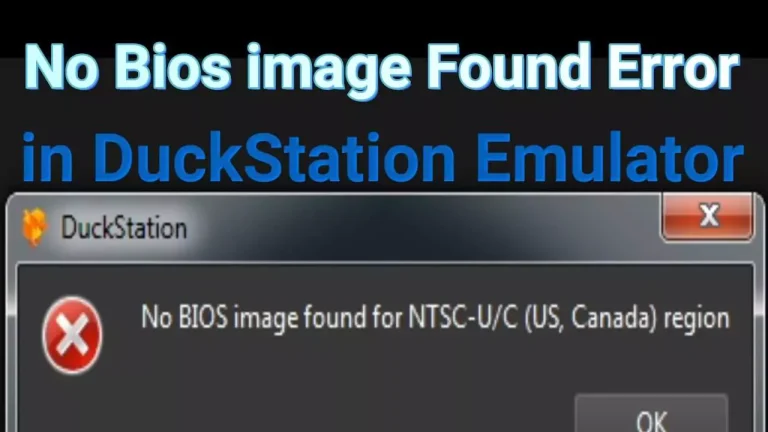
Error: No BIOS Loaded in the Emulator
Problem:
Your emulator is unable to detect or recognize the PS1 BIOS file.
Solution:
Make sure the BIOS file is correctly named (e.g., SCPH1001.BIN) and placed in the exact folder your emulator expects. For most emulators like ePSXe, DuckStation, or RetroArch, you can find the BIOS directory under Settings > BIOS or System Settings. If the file is in the wrong location or has a wrong file extension, the emulator won’t load it.
Pro Tip:
Double-check that file extensions are visible (Windows users may need to enable this). A common mistake is having a file named SCPH1001.BIN.txt, which won’t be recognized.
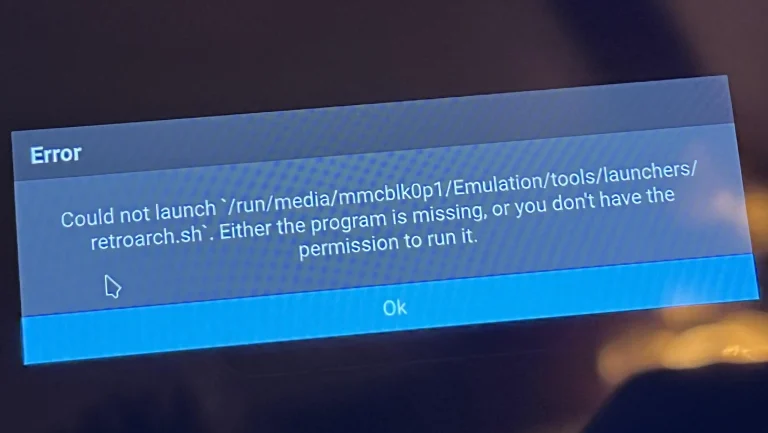
Error: Game Crashes After BIOS Screen
Problem:
The game runs the PS1 BIOS animation but suddenly crashes or freezes after that.
Solution:
Make sure your BIOS file is working correctly by re-downloading it from a trusted source like psbios.com. Also, check that your game ROM matches the BIOS region (e.g., NTSC-U with USA BIOS). Incompatible or corrupted ROMs can cause crashes. Try loading a different ROM file or use another emulator version if the issue continues.
Pro Tip:
Use region-specific BIOS files to avoid loading issues or emulator crashes.
Error: Laggy or Choppy PS1 Gameplay
Problem:
Games feel sluggish, freeze briefly, or show slow frame rates during gameplay.
Solution:
Optimize your emulator’s performance by tweaking video, audio, and CPU settings. Use a region-matching BIOS file for best compatibility. Reducing resolution, enabling frame skip, or closing background apps can improve speed and reduce lag.
Pro Tip:
Use BIOS and ROM from the same region and tweak performance settings for smoother gameplay.
Error: Game Not Loading Due to Region Mismatch
Problem:
Your game fails to launch or shows a black screen because the BIOS and ROM come from different regions.
Solution:
Match your BIOS file to the game’s region. For NTSC-U (USA) games, use SCPH1001.BIN. For PAL (Europe) titles, use SCPH7502.BIN. A mismatched BIOS may prevent the game from booting correctly. Double-check both the ROM and BIOS region before launching any game.
Pro Tip:
Always use BIOS files that match your game’s region to avoid emulator errors, loading failures, or unexpected crashes.
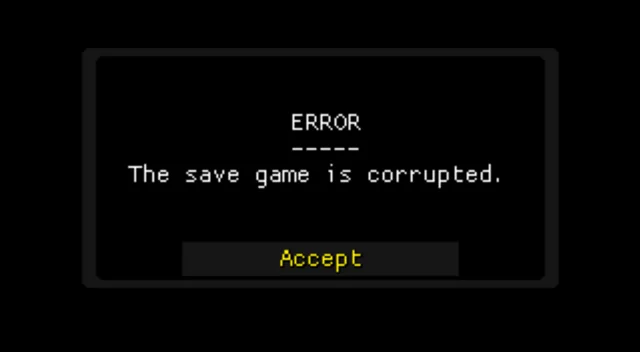
Corrupted Save Files
Problem:
Save data becomes corrupt or won’t load.
Solution:
Save data becomes corrupt or won’t load.
The Game Freezes or Stutters During Cutscenes
Problem:
Games freeze or glitch during cinematic sequences.
Solution:
Ensure the game ROM is clean and verified. Also, check that you’re using the recommended BIOS from psbios.com for the best emulation accuracy.
Disc Image Not Detected
Problem:
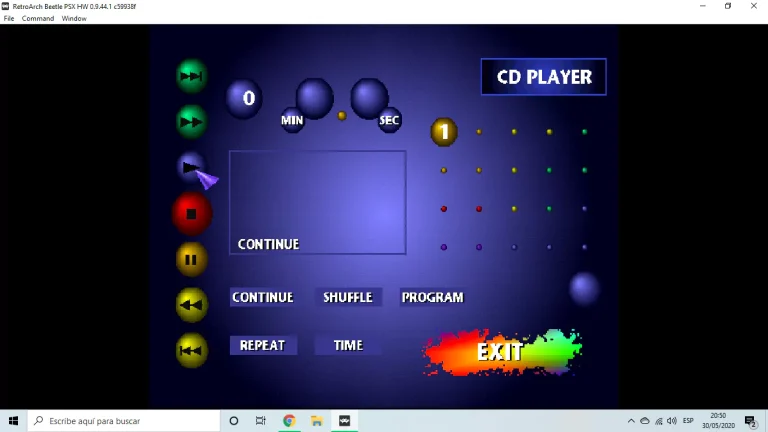
The emulator fails to load the game’s disc image (ISO/BIN/CUE).
Solution:
Confirm that your game files are properly formatted and aren’t corrupted.
Screen Tearing or Graphic Glitches
Problem:
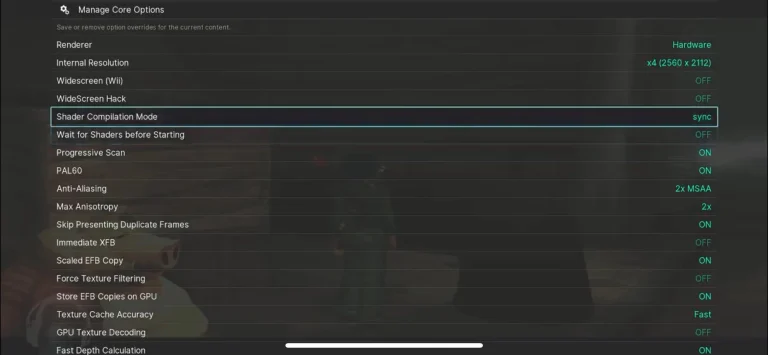
Visual issues such as tearing, pixelation, or missing textures.
Solution:
Update your graphics plugin settings in the emulator. Enable V-Sync and adjust rendering modes.
High CPU Usage or Overheating
Problem:
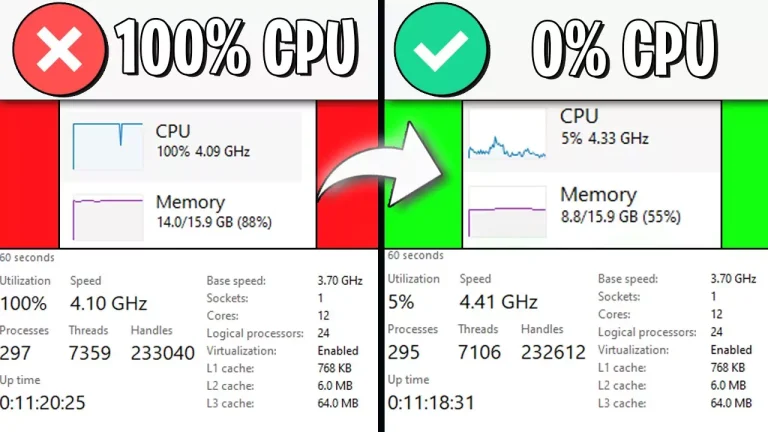
The emulator causes your device (PC, Android, iOS) to heat up or lag due to high CPU/GPU usage.
Solution:
Lower your emulator’s resolution or disable intensive graphical features like texture filtering and shaders.
Audio Desync or Lag
Problem:
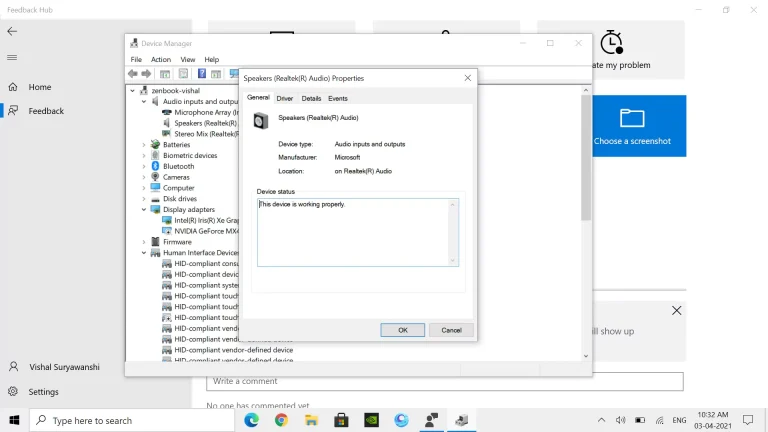
Sound is out of sync or delayed during gameplay.
Solution:
Adjust the audio latency in the emulator settings or use a BIOS that better fits your specific game region and ROM type.