
Get PS2 BIOS Files (All Regions – USA, Japan, Europe, China)
This section offers access to a complete collection of official PS2 BIOS files from different global regions. Whether you’re looking for BIOS from Japan, the USA, PAL zones, or even China, you’ll find them all listed below.
What is PS2 BIOS?
BIOS files are critical for PlayStation 2 emulators because they replicate the essential functions of the original console’s firmware. The BIOS handles key tasks such as hardware initialization, game booting, and system management. Without the BIOS, an emulator cannot function properly, as it relies on these processes to run PS2 games accurately and smoothly.

How to Set Up PS2 BIOS on Your Computer
Frequent PS2 BIOS Issues and How to Fix Them
While setting up PS2 BIOS for emulation, you might run into a few common problems. Below are some typical errors users encounter, along with practical solutions.
1. “BIOS File Missing” or “BIOS Not Detected” Error
Solution:
- Make sure the BIOS file is placed in the exact folder the emulator is configured to look in.
- Open the emulator’s configuration and verify the BIOS file path is accurate.
- Confirm the BIOS file is properly named (e.g., SCPH-xxxx.bin) and in the supported format.
- Re-scan or refresh the BIOS directory from within the emulator if necessary.
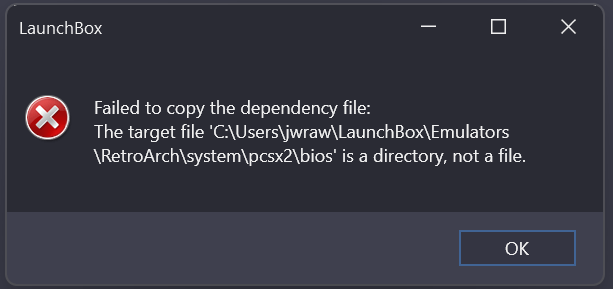
BIOS Not Found (Error)
2. “Incompatible BIOS Version” Error
Solution:
- Make sure the BIOS file aligns with the region of the game you’re trying to run — for example, use NTSC for U.S. titles, PAL for European games, and NTSC-J for Japanese versions.
- If you have several BIOS files from different regions, try switching to another one that better suits your game.
- Refer to your emulator’s official guidelines or support page to find which BIOS versions are best supported for stable performance.
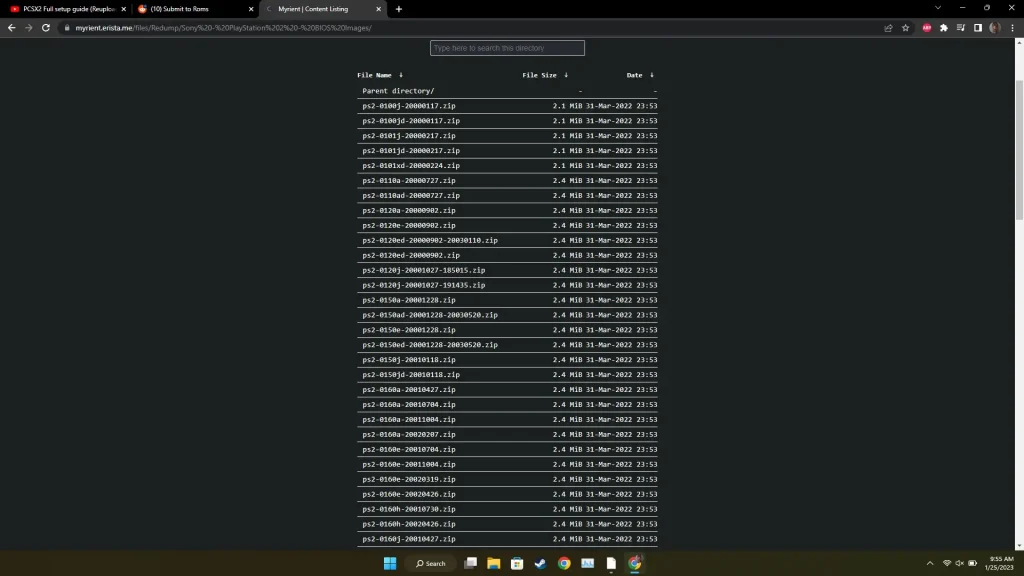
All Versions
3. “Corrupted or Damaged BIOS File”
Solution:
- Use BIOS dumping tools to extract a fresh copy of the BIOS directly from your own PS2 console.
- Make sure the file transfer process completes without errors or interruptions — avoid disconnecting storage devices early.
- Check the file size and structure of the BIOS and compare it with a verified working version to ensure it’s not incomplete or altered.
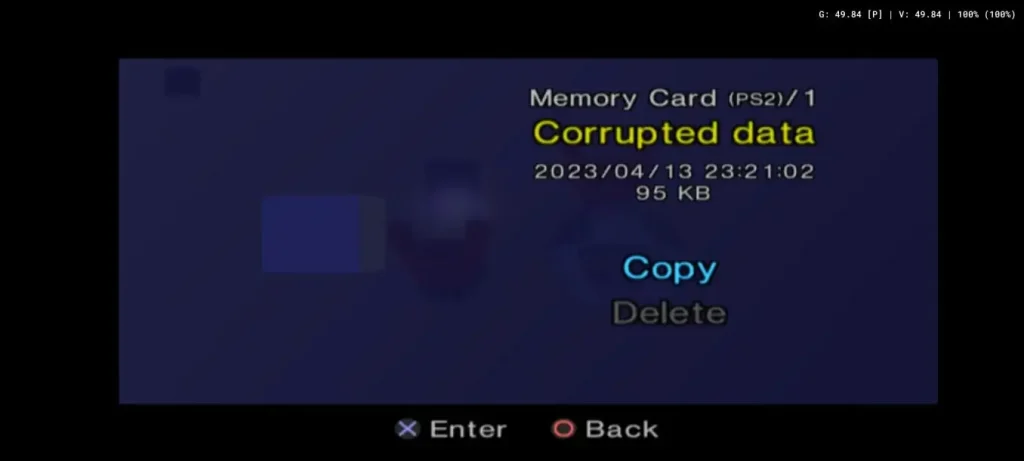
Corrupted BIOS File (Error)
4. Laggy Gameplay or Choppy Performance
Solution:
- Ensure you’re using the most up-to-date version of your emulator, as newer builds often include performance boosts and stability patches.
- Tweak performance-related settings like enabling speed hacks, switching to a lighter graphics plugin, or adjusting resolution settings.
- Double-check that your computer meets or exceeds the emulator’s recommended hardware requirements — especially CPU and GPU performance.
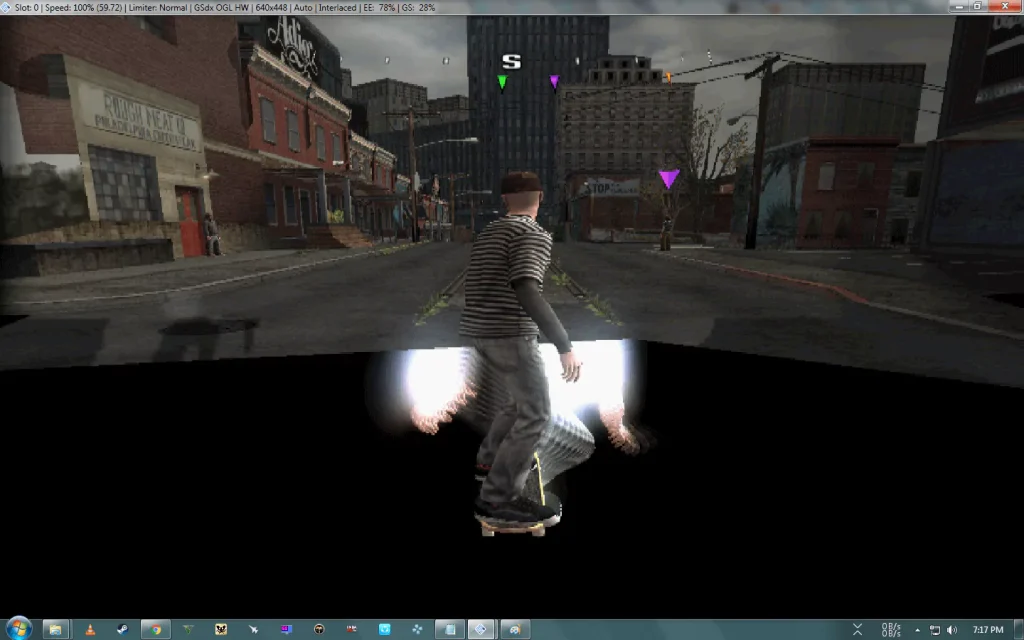
Black Screen Error (PCSX2)
6. BIOS File Isn’t Recognized by Emulator
Solution:
- Check that the BIOS file uses a supported format, such as .bin or .rom — avoid unsupported or unusual extensions.
- Make sure the filename is clean and correct; for example, avoid accidental renaming like
SCPH-xxxxx.bin.bin. - If problems persist, consider re-dumping the BIOS from your PS2 console to ensure you have a fresh, uncorrupted version ready for use.
FAQs:
Conclusion
That wraps up everything you need to know about downloading and using PS2 BIOS files from our site. If you run into an issue that isn’t covered in our list of common problems and solutions, feel free to leave a comment or reach out to us through our contact form. We’re here to help you get your emulator up and running smoothly.