
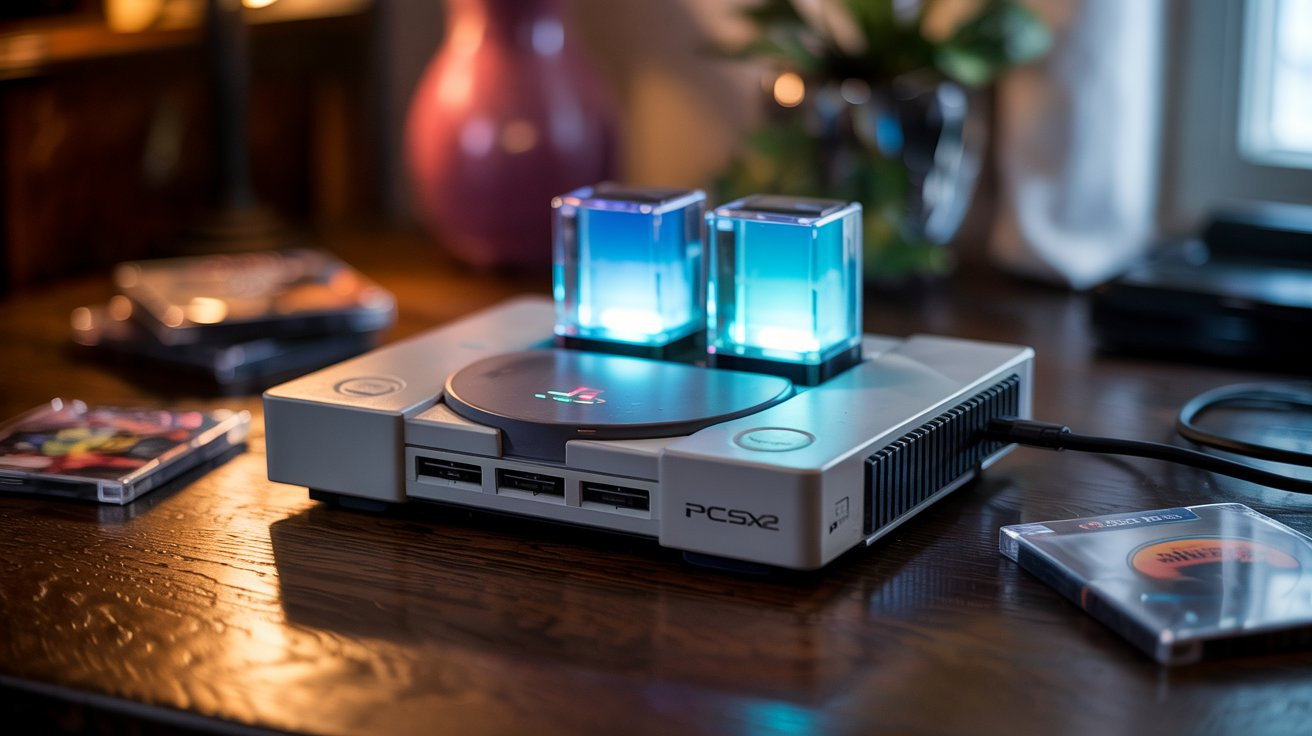
Hey there, fellow gamer! Do you remember the joy of popping a shiny disc into your PlayStation 2? The iconic startup sound and those glowing towers are etched into our memories. Today, we don’t need the old bulky hardware to relive those moments. Thanks to the amazing work of the emulation community, we can play these classics on our computers and even our phones. But let’s be honest: getting games to run smoothly can be a bit of a headache. That is why I am here to help you find the pcsx2 best settings to make your gameplay feel like a dream.
Emulation is like building a bridge between two different worlds. Your modern PC speaks one language, while the PS2 speaks another. The PCSX2 emulator acts as the translator. If the translation isn’t perfect, you get lag, weird glitches, or blurry graphics. I have spent countless hours tinkering with sliders and checkboxes so you don’t have to. Whether you want to play God of War in 4K or just want Tekken to stop stuttering on your laptop, this guide has your back. Let’s dive into the world of retro gaming with a modern twist!
Quick Facts: PCSX2 Emulator Biography
| Feature | Details |
| Full Name | PCSX2 (PlayStation 2 Emulator) |
| Initial Release | March 23, 2002 |
| Latest Version | v2.2.0+ (Nightly Builds Recommended) |
| Supported Platforms | Windows, Linux, macOS, Android |
| Core Requirement | pcsx2 bios (Legal owner dump required) |
| Key Features | Upscaling, pcsx2 cheats, Save States, Wide-screen Hacks |
| Best API | Vulkan (Recommended for 2026) |
Understanding the Importance of the PCSX2 BIOS
Before you can even see a game menu, you need a pcsx2 bios. Think of the BIOS as the “soul” of the PlayStation 2. It is the system software that tells the emulator how the hardware should behave. Without it, the emulator is just an empty shell. You might see people talking about a ps2 bios for pcsx2 as if it is just another file, but it is actually copyrighted code. The best and most legal way to get this is to “dump” it from your own physical PS2 console using a simple tool.
Once you have your pcsx2 bios, you need to place it in the correct folder. Usually, this is in the “bios” directory inside your PCSX2 installation folder. When you first open the emulator, it will ask you to select this file. I always recommend using a newer BIOS version (like the v2.0+ series) because they tend to have better compatibility with a wider range of games. If the emulator doesn’t see your file, make sure it is unzipped. It should end in a .bin extension!
Getting Started with PCSX2 Best Settings for Graphics
If you want your games to look better than they did back in 2004, you need to tweak the graphics. The pcsx2 best settings usually start with the “Renderer” option. In 2026, the Vulkan renderer is the king. It is much faster than the old OpenGL or Direct3D options, especially if you have an AMD or Intel graphics card. Using Vulkan can instantly fix those annoying slowdowns in heavy games like Shadow of the Colossus.
Another big tip is the “Internal Resolution.” The original PS2 ran at a very low resolution that looks blurry on big monitors. By turning this up to 3x or 4x (1080p or 1440p), the edges of your characters become sharp and clean. However, if your computer starts to get hot or the game slows down, bring it back down to 2x. It is all about finding that “sweet spot” where the game looks beautiful but stays at a solid 60 frames per second.
How to Optimize Performance on Low-End PCs
Not everyone has a high-end gaming rig, and that is perfectly okay! You can still enjoy the pcsx2 best settings on a budget laptop. The trick is to use “Speedhacks.” Inside the settings menu, look for “Cycle Rate” and “Cycle Skipping.” These options tell the emulator to take shortcuts. It might make the animations look a tiny bit less smooth, but it can turn a slow-motion game into something playable. Just don’t push them too far, or the game might crash.
I also suggest disabling “Heavy” effects like Depth of Field or Motion Blur if the game supports it via patches. Another lifesaver for slow PCs is the “MTVU” (Multi-Threaded microVU1) hack. This allows the emulator to use more than one core of your processor. Since almost every computer today has at least four cores, this is a must-enable setting. It provides a massive boost in speed for almost every title in the PS2 library.
Taking Your Gaming Mobile with PCSX2 Android
Did you know you can play Ratchet & Clank on the bus? The pcsx2 android experience has improved massively lately. While the official PC team doesn’t make a mobile app, versions like NetherSX2 (based on the original AetherSX2 code) are the gold standard for 2026. Setting this up is very similar to the PC version. You still need that ps2 bios for pcsx2 to get things moving.
For the best mobile experience, use a Snapdragon-powered phone. These chips handle the heavy lifting of PS2 games much better than others. In the settings, make sure to enable “GPU Palette Conversion” and keep the resolution at 1x or 2x. Phones can get very hot while emulating, so keeping the settings modest will prevent your device from slowing down after ten minutes of play. A Bluetooth controller is also highly recommended for those tight platforming jumps!
Enhancing Your Gameplay with PCSX2 Cheats
Sometimes a game is just too hard, or maybe you just want to have some fun with infinite health. That is where pcsx2 cheats come in. The emulator uses a special file format called “.pnach” (short for patch). You can find these files online for almost every game. They don’t just give you cheats; they can also fix widescreen ratios or unlock 60fps modes for games that were originally locked at 30fps.
To use them, you need to find the “CRC” code of your game (you can see this in the emulator’s log window when the game starts). Name your text file after that code and put it in the “cheats” folder. Then, simply click “Enable Cheats” in the system menu. It is like magic! Suddenly, your old games have new features that weren’t even possible on the original hardware. It is a great way to breathe new life into a title you have already beaten ten times.
Fix Audio Lag and Stuttering Easily
Nothing ruins a great game like crackling audio. If your music sounds like a broken record, your pcsx2 best settings might need an adjustment in the “Audio” tab. Most of the time, audio stuttering happens because the game speed is dropping below 100%. If the video slows down, the audio slows down too. If your PC is fast enough but the sound is still weird, try changing the “Interpolation” to “Linear.”
Another hidden trick is the “Synchronization Mode.” Using “TimeStretch” is usually the safest bet. It stretches the audio to match the video speed so you don’t hear those annoying pops and clicks. If you are a hardcore rhythm game player and need zero lag, you might try “Async Mix,” but be warned: this can sometimes cause the audio to get out of sync with what is happening on the screen during cutscenes.
Managing Your Game Library Like a Pro
Once you have your pcsx2 best settings dialed in, you’ll probably want to download a lot of games. Managing a huge list of files can get messy. I always recommend using the “Game List” feature in the latest versions of PCSX2. You can point the emulator to your folder, and it will automatically show the box art and game titles in a beautiful grid. It feels just like using Netflix but for your childhood favorites!
To save space on your hard drive, look into “CHD” compression. This is a special file format that shrinks your PS2 games without losing any quality. A 4GB game can often be squished down to 2GB or less. This is especially helpful if you are using pcsx2 android, where phone storage is usually limited. It is a small step that makes a huge difference when you want to keep fifty games in your pocket.
Why You Should Use Nightly Builds in 2026
When you visit the official website, you might see a “Stable” version and a “Nightly” version. For the pcsx2 best settings, you should almost always pick the Nightly build. The developers work on the code every single day. The “Stable” version is often years out of date and misses out on new features like the high-performance Vulkan renderer or the new, easier-to-use interface.
The Nightly builds are surprisingly reliable. If a bug does pop up, it is usually fixed within 24 hours. These versions also include “Automatic Game Fixes.” This means the emulator knows which specific settings a game like Jak II needs and turns them on for you automatically. It takes the guesswork out of the process and lets you spend more time playing and less time digging through menus.
Troubleshooting Common Black Screen Issues
It is a frustrating feeling: you load your pcsx2 bios, select your game, and then… nothing. Just a black screen. Don’t panic! This usually happens for one of two reasons. First, check your “Disc Image.” If the file is corrupted, it won’t boot. Second, make sure your “Video Plugin” is compatible. Sometimes switching from Vulkan back to OpenGL for just a moment can help a stubborn game get past the initial loading screen.
Also, check if “Fast Boot” is causing issues. While we all love skipping the intro animation, some games actually need that startup sequence to load their memory correctly. If a game stuck on black, try using “Full Boot” instead. It takes an extra five seconds, but it is much more reliable for older titles. Usually, these small tweaks are all it takes to get back into the action.
Final Thoughts on PS2 Emulation
Emulation is a journey, not a destination. The pcsx2 best settings for my computer might be slightly different from yours, and that is part of the fun. It is about experimenting and seeing how far we can push this legendary console’s library. With the right pcsx2 bios, a few clever pcsx2 cheats, and a little patience, you can turn your modern device into the ultimate retro gaming machine.
I hope this guide helps you get those favorite childhood games running perfectly. Whether you are playing on a massive 4K TV or a small phone screen with pcsx2 android, the magic of the PlayStation 2 is still alive and well. Now, grab your controller, load up your favorite game, and go have some fun!
Frequently Asked Questions (FAQs)
1. Where can I safely get a ps2 bios for pcsx2?
The only legal way is to dump it from your own PlayStation 2 console. There are many guides online that show you how to use a “Free McBoot” memory card to copy the BIOS file to a USB drive.
2. Why is my game running in slow motion?
This usually means your CPU or GPU isn’t keeping up. Try lowering the “Internal Resolution” to 1x (Native) and enable “Speedhacks” in the settings. Also, make sure your computer is plugged into power and set to “High Performance” mode.
3. Can I use my original PS2 controllers?
Yes! You can buy a cheap USB adapter online that lets you plug original PS2 controllers into your PC. PCSX2 will recognize them easily in the “Controller Settings” menu.
4. Are pcsx2 cheats safe to use?
Absolutely. These cheats only affect the game inside the emulator. They won’t hurt your computer or your game files. Just remember to disable them if the game starts acting glitchy.
5. Does pcsx2 android support all games?
Most games work, but the compatibility is slightly lower than the PC version. Heavy games like Metal Gear Solid 3 or Gran Turismo 4 require a very powerful phone to run at full speed.
6. How do I update the emulator without losing my saves?
Simply download the new version and point it to your existing “Memcards” folder. Your save files are stored separately from the emulator program, so they stay safe during updates.